Cinelerra-GG Qt6 alpha 2026-10-29: zoom grips, AI remote control, fixes from your reports

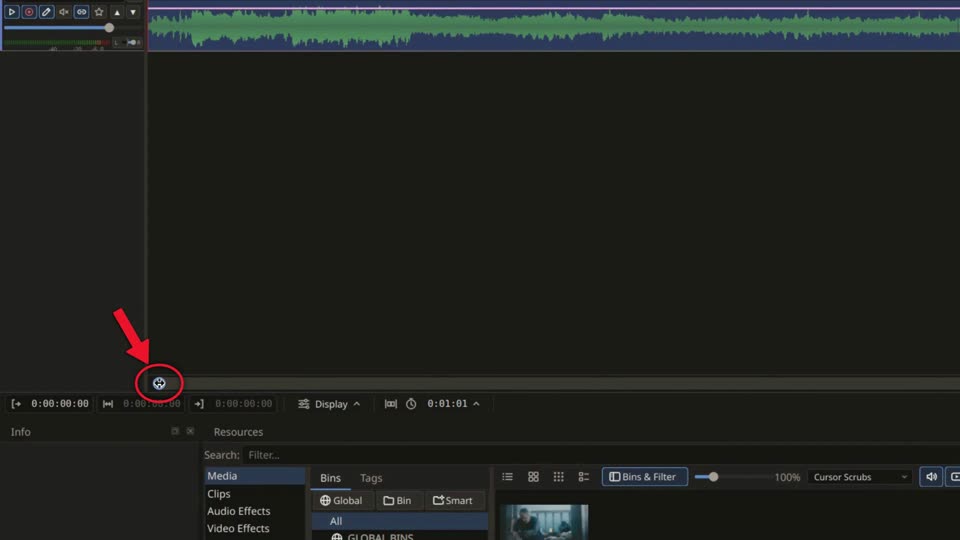
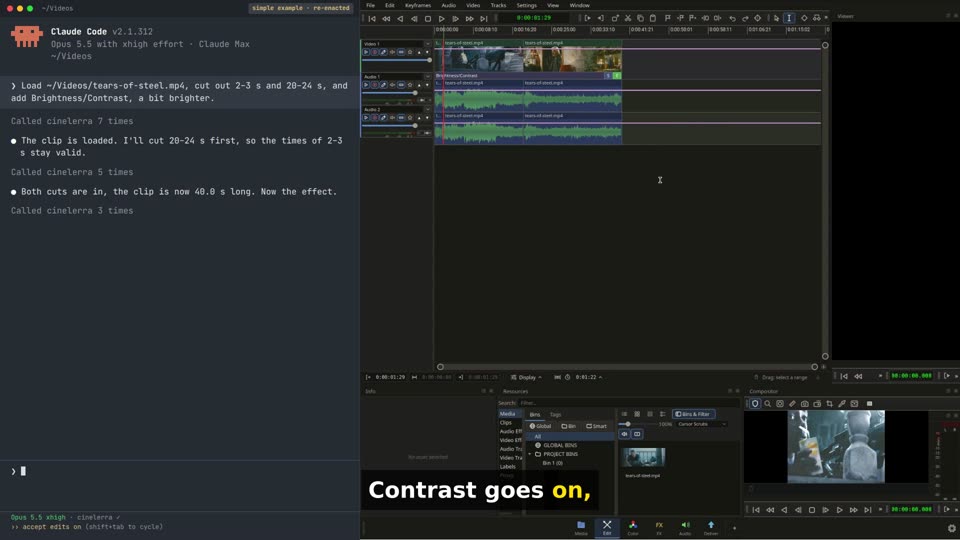
Hi everyone, a new Qt6 alpha is online, built on 2026-10-29. It brings zoom grips on the timeline scrollbars, hints in the footer, a first version of remote control for AI assistants, and the fixes for what you reported since the alpha of 2026-10-27. Thank you, Terje, Andrea, Rob and Andrew, for testing and for the detailed reports. Download (sorted by date, the newest on top): download.cinelerra-gg.org <https://download.cinelerra-gg.org/?path=qt6-alpha&sort=date_desc> * CinGG-qt6-alpha-20261029-x86_64.AppImage <https://download.cinelerra-gg.org/files/qt6-alpha/CinGG-qt6-alpha-20261029-x86_64.AppImage>, sha256 |bbc89ef9e26b38468addb30775339b79aeb332d40a60d2fec7395620bc8b7912| * CinGG-qt6-alpha-20261029-anylinux-x86_64.AppImage <https://download.cinelerra-gg.org/files/qt6-alpha/CinGG-qt6-alpha-20261029-anylinux-x86_64.AppImage> for older systems (it brings its own glibc), sha256 |0b41d7b0144449d76e9a78b14839fdd236a7b82094779352eec56c71c34006e8| The source is public: git.cinelerra-gg.org <https://git.cinelerra-gg.org/?p=sam/cinelerra-gg-qt6.git;a=summary>, branch main, 59 commits since the alpha of 2026-10-27. 1. Zoom grips on the timeline scrollbars Premiere, Kdenlive and VEGAS let you zoom right on the timeline scrollbar, and Cinelerra can do that now, too. Each end of the scrollbar thumb has a round grip. Drag a grip and the view zooms smoothly, while the other end stays where it is. When you let go, the grip stays under the mouse. Drag the middle to scroll as before, and a double-click shows the whole project. The vertical scrollbar beside the tracks has the same grips. There a grip changes the height of all tracks at once, audio and video alike, and a double-click fits all tracks into the window. The footer now tells you what the mouse can do: over a clip, over the time ruler, over a scrollbar. While you drag a clip, it says what the drop will do, move it, or with Shift, overwrite. If you don't want the hints, a right click on the footer turns them off. The E key toggles the editing mode again. Video, 1:32, English with subtitles: zoom grips and footer hints <https://download.cinelerra-gg.org/files/qt6-alpha/videos/cinelerra-qt6-zoom-grips.mp4> Video, 1:32, English with subtitles: zoom grips and footer hints <https://download.cinelerra-gg.org/files/qt6-alpha/videos/cinelerra-qt6-zoom-grips.mp4> 2. Remote control for AI assistants (MCP), an early version Professional editors are adding a way for AI assistants to work in the edit. DaVinci Resolve Studio has a built-in MCP server for this. Adobe has an official connector for quick video jobs in the cloud, while control of the Premiere Pro or Final Cut Pro timeline still takes add-ons from the community. Cinelerra now has its own MCP server, built into the program, free and open source. It is off by default. Turn it on in Settings, Preferences: search for remote control and tick Allow AI tools and scripts to control Cinelerra (local socket). Cinelerra then opens a socket in a private directory, only for your user. Every call is written to api.log in the configuration folder, and every change is one undo step. Then register Cinelerra with your assistant. For Claude Code that is one line: |claude mcp add cinelerra -- /path/to/CinGG-qt6-alpha-20261029-x86_64.AppImage --mcp| Codex works the same way, with an entry in ~/.codex/config.toml. The README in the repository has both setups. The video shows a very simple example, just to see what it can do: load a clip, cut out two ranges, add Brightness/Contrast and look at the frames on both sides of the cut. The terminal on the left is re-enacted, the Cinelerra on the right is the real program, driven through the socket with the same calls a real session made. The assistant can do a lot more: * Effects: add, remove, move, switch on and off, set single parameters, apply and save presets, reset, open and steer the Effect Inspector. * Project: list tracks, clips and media, select clips, arm tracks, save the project under a new name. * Timeline: read and set the position, select ranges, and through the command table jump to edits and labels, set in and out points and much more. * Seeing and events: a frame of the compositor at any point, and a notice of every change to the project. * In all there are 45 verbs, and over 300 commands of the command table can be run. Prepared, but not available yet: rendering, inserting, moving and trimming clips, and automatic editing. Scene detection comes next. This is the first step, and more will follow. Video, 2:46, English with subtitles: remote control for AI assistants <https://download.cinelerra-gg.org/files/qt6-alpha/videos/cinelerra-qt6-ai-control.mp4> Video, 2:46, English with subtitles: remote control for AI assistants <https://download.cinelerra-gg.org/files/qt6-alpha/videos/cinelerra-qt6-ai-control.mp4> The film in both videos is Tears of Steel, (CC) Blender Foundation, mango.blender.org, licensed CC BY 3.0. All videos with .srt subtitles: qt6-alpha/videos <https://download.cinelerra-gg.org/?path=qt6-alpha%2Fvideos>. 3. Fixes from your reports Terje (GNOME): * A floating Compositor stayed above the main window, and the main window could not be brought in front of it. Settings, Preferences, Appearance has a new row Floating panels: Stay above the main window (the default, as before) or Separate windows, where every panel is a window of its own. * Interface Scale could only be set for the platform that was running. Both rows, X11 and Wayland, are shown now, and the one in use is marked. Andrea: * VAAPI did not start in either AppImage (no function __vaDriverInit_1_0). The cause is not your graphics card: the AppImage brought libva 2.20, which cannot load the VAAPI drivers of newer distributions. The normal AppImage now takes libva from your system and keeps its own copy only as a fallback. The anylinux AppImage is unchanged for now. Rob (Debian 13, openbox, two screens): * The waveform of a clip was incomplete on the first load. It is complete now as soon as the index of the clip is built. * Dragging a floating panel by its title bar often resized it instead. Only the top 4 px of the title bar resize now, the corners keep their wider grip. * With Separate windows, the window manager moves a floating panel, so it can go to your second screen without docking on the way. A double-click on its title bar docks it again. * Dialogs did not stand out from the main window without a compositing window manager. Every dialog now has its own background and a thin frame. Found in our own tests: * The mouse wheel changed number fields and lists while you scrolled a page, for example the channels in the Info panel. On scrolling pages, a field now takes the wheel only after you clicked it. The effect panels keep the wheel as before, there it is wanted. * Keys of the classic main window that did nothing in the Qt6 build so far work again. They run through the command table and can be changed in the keyboard editor. Andrew, Terje: VAAPI with ffmpeg 9 is still open. I will come back to you with a test build. How this is made As before, the code is written with Claude. What I rely on is testing: automated tests that run the real program, code reviews of each larger change, and my own check of every feature before it is pushed. That does not make it free of bugs, so please keep the reports coming: bug.cinelerra-gg.org <https://bug.cinelerra-gg.org> or this list. Sam

On 29.10.2026 04:28, Sam via Cin wrote:
.......snip
3. Fixes from your reports
Terje (GNOME):
* A floating Compositor stayed above the main window, and the main window could not be brought in front of it. Settings, Preferences, Appearance has a new row Floating panels: Stay above the main window (the default, as before) or Separate windows, where every panel is a window of its own. * Interface Scale could only be set for the platform that was running. Both rows, X11 and Wayland, are shown now, and the one in use is marked.
Thanks, Sam. Both points above works fine for me on native Wayland, where CinGG also starts from scratch. .
Andrea:
* VAAPI did not start in either AppImage (no function __vaDriverInit_1_0). The cause is not your graphics card: the AppImage brought libva 2.20, which cannot load the VAAPI drivers of newer distributions. The normal AppImage now takes libva from your system and keeps its own copy only as a fallback. The anylinux AppImage is unchanged for now.
Andrew, Terje: VAAPI with ffmpeg 9 is still open. I will come back to you with a test build.
😎

- If I render with h264_vaapi and hevc_vaapi in CinGG-qt6-alpha-20261029-x86_64.AppImage, the rendering works fine. If I use av1_vaapi and vp9_vaapi, the rendering doesn't work: [av1_vaapi @ 0x7fc4509110c0] No usable encoding profile found. FFMPEG::open_encoder err: Function not implemented int FFMPEG::open_encoder(const char*, const char*): open failed av1_vaapi:/home/paz/output.mp4 [vp9_vaapi @ 0x7fc41405da00] No usable encoding entrypoint found for profile VAProfileVP9Profile0 (19). FFMPEG::open_encoder err: Function not implemented int FFMPEG::open_encoder(const char*, const char*): open failed vp9_vaapi:/home/paz/output.mp4 - When I'm in Wayland (“display platform” = Wayland), I can drag filters from the Resources window to the track in the timeline. If I make the window floating, dragging the filter no longer works. This happens whether I set “floating panels:” to “separate windows” or to “Stay above the main window.” If I set “display platform” to X11, I have no problems—even the floating Resources window works.

I tested quickly CinGG-qt6-alpha-20261029-anylinux-x86_64.AppImage <https://download.cinelerra-gg.org/files/qt6-alpha/CinGG-qt6-alpha-20261029-anylinux-x86_64.AppImage> on UbuntuStudio_16.04-64bit. It seems work well. - Proxy: it doesn't work correctly. When the Proxy is used, it should change the size of the project: the height and width values of the project should be divided by the proxy factor. Then, when You disable Then, when you disable the proxy, by clicking the 'P' icon in the top-right corner of the timeline or by using the menu, it is not restored. - Mixer View: I think it hasn't been implemented yet. I create the Mixers in manual mode using Shift+M shortcut to add a Mixer Viewer. Than I link the Mixer Viewer using the Mix button for the Video track I want to link. The Mixer Viewer remains black, failing to display the content of the video track. Thank you so much for you great job! IgorBeg Il 29/10/2026 04:28, Sam via Cin ha scritto:
a new Qt6 alpha is online, built on 2026-10-29. It brings zoom grips on the timeline scrollbars, hints in the footer, a first version of remote control for AI assistants, and the fixes for what you reported since the alpha of 2026-10-27. Thank you, Terje, Andrea, Rob and Andrew, for testing and for the detailed reports.
Download (sorted by date, the newest on top): download.cinelerra-gg.org <https://download.cinelerra-gg.org/?path=qt6-alpha&sort=date_desc>
* CinGG-qt6-alpha-20261029-x86_64.AppImage <https://download.cinelerra-gg.org/files/qt6-alpha/CinGG-qt6-alpha-20261029-x86_64.AppImage>, sha256 |bbc89ef9e26b38468addb30775339b79aeb332d40a60d2fec7395620bc8b7912| * CinGG-qt6-alpha-20261029-anylinux-x86_64.AppImage <https://download.cinelerra-gg.org/files/qt6-alpha/CinGG-qt6-alpha-20261029-anylinux-x86_64.AppImage> for older systems (it brings its own glibc), sha256 |0b41d7b0144449d76e9a78b14839fdd236a7b82094779352eec56c71c34006e8|
The source is public: git.cinelerra-gg.org <https://git.cinelerra-gg.org/?p=sam/cinelerra-gg-qt6.git;a=summary>, branch main, 59 commits since the alpha of 2026-10-27.
participants (4)
-
 Andrea paz
-
 Igor BEGHETTO
-
 Sam
-
 Terje J. Hanssen